Enter each D2L Grade Category with its current percentage and the weight from your syllabus. Check Bonus for extra-credit categories.
| Grade Category | Score (%) | Weight (%) | Bonus | Remove |
|---|
| Grade Item | Earned | Possible | Bonus | Remove |
|---|
Letter grade reference (standard D2L grading scheme)
| Letter | Percentage | GPA Points (4.0) |
|---|---|---|
| A | 93-100% | 4.0 |
| A- | 90-92% | 3.7 |
| B+ | 87-89% | 3.3 |
| B | 83-86% | 3.0 |
| B- | 80-82% | 2.7 |
| C+ | 77-79% | 2.3 |
| C | 73-76% | 2.0 |
| C- | 70-72% | 1.7 |
| D+ | 67-69% | 1.3 |
| D | 63-66% | 1.0 |
| D- | 60-62% | 0.7 |
| F | Below 60% | 0.0 |
How the D2L Grade Calculator Replicates Brightspace
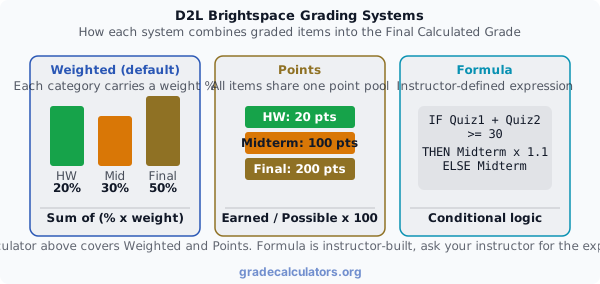
The d2l grade calculator above reproduces the arithmetic D2L Brightspace runs when it populates the Final Calculated Grade row on the Grades page. Brightspace supports three grading systems (Weighted, Points, and Formula), plus a What-If projection inside the D2L Pulse mobile app. In Weighted Categories mode, each Grade Category percentage is multiplied by its category weight and summed. In Points-Based mode, the course grade is total earned divided by total possible. The calculator above offers both modes plus a What-If target solver that the native D2L Pulse projection does not compute directly. Switch tabs to match how your instructor configured the gradebook.
D2L Brightspace Grade Calculation: Weighted Categories Formula
The default and most common configuration in D2L higher-education courses is the Weighted grading system. The instructor creates Grade Categories on the Manage Grades page (Homework, Quizzes, Midterm, Final, Participation, and so on) and assigns each category a percentage weight that totals 100. Brightspace calculating grades within a category produces a category percentage, then multiplies by the category weight and sums across all categories with graded work. Calculated grade item in brightspace handling: each grade item inside a category contributes proportionally based on its points value (or by an instructor-defined custom weight when "Manually assign weight to items in the category" is selected).
D2L Weighted Categories Formula
- Category % = (sum of earned points in the category / sum of points possible in the category) x 100
- Category Weight = the percentage weight the instructor set in Grade Setup; totals to 100% across the course in a standard configuration
- D2L normalizes the denominator when not every category has graded work, so a mid-semester total reflects only the graded portion
D2L Points-Based System Formula
- Earned Points = sum of scores across every graded item with "Include in Final Grade" enabled
- Points Possible = sum of maximum point values across every graded item counted toward the grade
- Items flagged "Exclude from Final Grade" are dropped from both the numerator and denominator
- Bonus items add to the numerator without expanding the denominator
D2L Grading Systems Types: Weighted, Points, and Formula
D2L Brightspace supports three grading system types, configured by the instructor in Grade Setup. The d2l grade calculator above covers the two most common (Weighted and Points). The Formula system is rare and instructor-built, so a generic calculator cannot mirror it without the instructor formula expression. The flagship chart below compares how the three systems combine grade items into a final figure.
D2L Final Calculated Grade Versus Final Adjusted Grade
Final calculated grade vs final adjusted grade in d2l: these are two separate columns in the D2L Grades tool. The Final Calculated Grade is the automatic figure D2L produces from the grading-system formula, category weights, item scores, bonus rules, and the grading scheme. The Final Adjusted Grade is an optional override column the instructor uses for curves, participation bumps, or documented accommodations. Both columns can coexist in the same course; the instructor decides which one gets released to students through the Display final grade calculation to users and Display final adjusted grade to users toggles in Grade Setup. The d2l grade calculator above projects the Final Calculated Grade, since the Final Adjusted Grade reflects instructor judgment that no formula can predict.
Why the D2L Final Calculated Grade May Not Be Showing
D2l final calculated grade not showing usually traces to one of three settings. First, Display final grade calculation to users is off in Grade Setup, the per-item scores are visible but the rolled-up total reads as dashes. Second, the instructor has Auto-Update disabled, so the figure exists internally but has not been recalculated after recent grading. Third, the course uses Final Adjusted Grade as the released column, in which case the Final Calculated Grade is intentionally hidden in favor of the curved figure. The fix in every case requires the instructor to change a Grade Setup option; students cannot toggle these themselves. Use the brightspace grade calculator above to project the figure while you wait for the instructor to release it.
How to Make Final Calculated Grade Visible in D2L (Instructor Reference)
How to make final calculated grade visible in d2l for instructors: open Grades, click the Settings icon, then the Calculation Options tab. Set the Final Grade Released to Calculated Final Grade, and check Automatically release final grade if you want it to publish without per-student action. Alternatively, from Enter Grades, select students by checkbox and use the Release All option from the More Actions menu. Once released, the Final Calculated Grade row appears at the bottom of the student Grades page with both the percentage and the letter (if a D2L grading scheme is enabled). Unlike the Final Adjusted Grade column, there is no per-student visibility override here, the toggle releases the figure to every student in the course simultaneously; a single student needing an early release for a transcript request instead gets the figure entered manually in the Final Adjusted Grade column and released just to them.
D2L Bonus Items and Exclude From Final Grade Calculation
Exclude from final grade calculation d2l: every grade item in D2L has an Exclude from Final Grade checkbox in its Properties tab. When checked, the item is dropped from both the numerator and denominator of the Final Calculated Grade computation, useful for ungraded participation rubrics, peer-review submissions used for feedback only, or items the instructor decided not to count after the syllabus posted. Bonus items operate inversely: the Bonus checkbox in Properties adds the earned points to the numerator without expanding the denominator, so a 5-point bonus assignment in a 100-point category adds up to 5 percentage points above the category mean. The d2l grade calculator above models both behaviors: drop excluded items from your entries, and check the Bonus column for bonus rows so they contribute to the total without changing the weight base.
D2L Milestone Grade Calculation Versus Final Grade Calculation
D2l milestone grade calculation vs final grade calculation: D2L distinguishes between the rolling Calculated Final Grade (which updates continuously as items are graded throughout the term) and a milestone snapshot (which freezes the figure at a specific point, midterm, end of unit, last drop date) for instructor reporting and student feedback. Milestone snapshots typically use the same formula as the rolling calculation but apply only to items graded by that date. The d2l grade calculator above projects the rolling figure; for a milestone snapshot, enter only the categories that had graded work by the milestone date and ignore the rest. The weighted denominator adjusts automatically to reflect the partial dataset.
What-If Grades on D2L: Using the Target Solver
The native D2L Pulse app shows a What-If projection on the course tile (an estimate of your finishing grade based on current trajectory), but it does not solve in reverse. If you know you want an 85% in the course and 65% of the work is already graded, the D2L Pulse projection does not tell you what score you need on the remaining 35%. The d2l grade calculator above adds that target-solver behavior in its dedicated What-If mode. Enter your current weighted grade, the share of weight already graded, and the target, and the calculator returns the required score on the remaining work.
What-If Target Solver Formula
- Current % = your present weighted Final Calculated Grade projection
- Percent Already Graded = share of the course total weight that has been graded so far
- Target = the course grade you want to finish at
Reconciling the D2L Grade Calculator With the Brightspace Gradebook
The d2l grade calculator returns the same figure as the D2L Final Calculated Grade row when four conditions hold: every category counted toward the grade is entered with its actual percentage and weight (or every item with its actual earned and possible points), the mode matches the instructor configuration (Weighted Categories vs Points-Based), bonus items use the Bonus checkbox so they add to the numerator only, and items marked Exclude from Final Grade in D2L are left out of your entries. Where divergence usually traces back to: late-penalty deductions D2L applied that you did not reflect in the entered score, items with custom item-level weighting inside a category (uncommon but possible), and grades hidden because the instructor switched the released column to Final Adjusted Grade.
D2L Grade Calculator Chrome Extension Versus Web Calculator
A d2l grade calculator chrome extension, sometimes searched as d2l grade calculator extension or brightspace grade calculator for students, scrapes per-category percentages from the D2L Grades page and runs the weighted-average math inside the browser. The accuracy of any d2l grade calculator extension depends on three things: every category percentage must be visible (no hidden Final Calculated Grade row, which the extension uses as a cross-check), the course must use a Weighted or Points grading system the extension recognizes (Formula systems usually break extensions), and the user must verify that bonus and excluded items are flagged correctly. When any of those fail, the web-based d2l grade calculator above produces the same figure without requiring browser permissions or D2L credentials. Pair it with our GPA calculator to roll multiple D2L course grades into a 4.0-scale cumulative GPA, since D2L does not natively compute a cross-course GPA the way student information systems (Banner, PeopleSoft, Workday Student) do.
Tips for Using the D2L Grade Calculator Effectively
- Check the grading system first. Open Grade Setup if you have access, or look at the bottom of the Grades page. Per-category percentages with weights signal Weighted; a single earned-over-possible total signals Points.
- Use the Bonus checkbox, not a separate row in the wrong place. Adding a bonus category as a regular weighted row inflates the denominator and undercounts the bonus. The Bonus column on each row in the calculator handles this correctly.
- Exclude items D2L marks Exclude from Final Grade. Skip them in your entries; leaving them in produces a figure that diverges from the D2L Final Calculated Grade.
- Trust the Final Calculated Grade projection over the D2L Pulse estimate. The Pulse app trajectory factors in extrapolations that the calculator does not; the formula-based projection above is the figure the gradebook will display.
- Use What-If mode to plan, not predict. The required-score figure assumes the remaining weight is graded uniformly. Real coursework rarely is, treat the figure as a planning ceiling rather than an exact prediction.
Sources and Verification
The d2l grade calculator above implements the D2L Brightspace grade formulas documented in D2L's official Community Knowledge Base. Specifically: the Weighted and Points grading systems and Formula grading system overview (D2L Community: Grading systems types), the Final Calculated and Final Adjusted Grade workflow (D2L Community: Manage final grades), and the Display Final Grade Calculation to Users instructor setting (UTRGV: Final Grade Calculation Options Checklist (Brightspace)). For additional institutional context on the Weighted system, see the Purdue Brightspace Weighted Grades guide and the Toronto Metropolitan University Brightspace Final Grades guide.
Always verify your projected course grade with the D2L Brightspace Final Calculated Grade row once the instructor releases it, and confirm with your specific school's registrar for cumulative GPA. Custom grading schemes, late-policy deductions, instructor adjustments through the Final Adjusted Grade column, and items marked Exclude from Final Grade can all move the final number, only the official course total from the registrar or instructor is authoritative for academic decisions.